
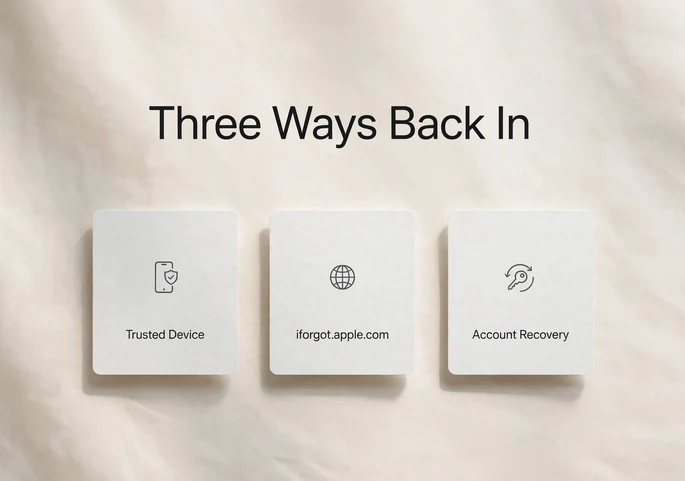
You grab your phone, tap the App Store, and your Apple password vanishes from your memory. Is your account gone for good, or does Apple keep a quiet back door open for moments exactly like this? And why does the same reset take two minutes for one person and several days for another? A forgot pwd moment on an Apple Account almost always has a fix, and the fastest one is a trusted device, with the iforgot.apple.com web page as the official backup. Which path you get depends on three things you probably already own.
What Is iforgot.apple.com and What Does It Do?
The iforgot.apple.com web page is Apple’s official site for resetting a forgotten Apple Account password, unlocking an account, and starting account recovery. You open it in any browser, enter your Apple Account email address or phone number, and follow the steps on screen.
A quick naming note. Apple ID is now called Apple Account. Your sign in details did not change. You still use the same email address or phone number and the same password.
People search for this page in many ways, including “iforgot apple com web” and “forgot pwd Apple.” Others type forgot Apple ID password, reset Apple ID password, or iCloud password reset. The old name Apple ID still shows up in those searches, but every one of them leads to the same place. Whenever the site can, it sends you to a trusted device, because that route is faster than going through the web alone.
What Should You Do First When You Forgot Pwd on Apple?
Before you start any reset, spend one minute on these checks. They can save you days.
- Look for a trusted device. This is an iPhone, iPad, Apple Watch, Apple Vision Pro, or Mac where you already signed in to your Apple Account with two factor authentication. If one is nearby, you may not need account recovery at all.
- Wait if you will soon have your device or number. If your trusted phone or device will be in your hands soon, Apple says waiting makes recovery faster.
- Try other email addresses and phone numbers. If you remember your password but not the email address, test the different addresses and numbers you might have used. Any email address or phone number linked to your Apple Account works for sign in.
Only after these checks should you move on to a reset.
How Do You Reset Your Apple Account Password on a Trusted Device?
This is the easiest way to handle an Apple ID password reset, which Apple now calls an Apple Account password reset. Your device already knows it belongs to you, so Apple lets you set a new password without a long wait.
On iPhone, iPad, or Apple Vision Pro:
- Open Settings and tap your name at the top.
- Tap Sign In and Security.
- Tap Change Password.
- Enter your device passcode when asked.
- Type a new password, confirm it, and tap Change.
On Mac:
- Open the Apple menu and choose System Settings.
- Click your name, then click Sign In and Security.
- Click Change Password.
- Enter your Mac administrator password, then follow the prompts.
If you are setting up a new device and cannot remember your password, look for “Forgot password?” or “Forgot password or don’t have an Apple Account?” on the sign in screen. Apple then points you to a trusted device, asks for a verification code sent to your trusted phone number, or guides you through a waiting period.
The information you enter during these steps is not stored on the device.
How Do You Reset Your Password on the iforgot.apple.com Web Page?
Use the web route when you have no trusted device in hand. It can take a little longer, so choose it when other options are not available.
- Go to iforgot.apple.com in your browser. Type the address yourself rather than clicking a link in a message.
- Enter your Apple Account email address or phone number.
- Choose the option to reset your password and follow the onscreen steps.
- Confirm your identity with the recovery factor Apple asks for, such as a code sent to your trusted phone number.
- Create a new password and sign in again on your devices.
If you open the page in Safari on a device running iOS 17 or later, or a recent version of macOS, the site tries to redirect you to a trusted device to change your password. That redirect saves time, so let it happen.
What Recovery Factors Might Apple Ask For?
If you are not signed in to a trusted Apple device, Apple may ask you to prove who you are. Have these ready before you start:
- Your trusted phone number. This is the number you set up to receive two factor authentication codes.
- A code from your recovery contact. If you added a recovery contact, ask them to be ready with the six digit code or to help in person.
- Your Apple Account email address. You must be able to open that inbox.
- The credit card on your account. Apple may ask for the CVV. If the card issuer declines it, you may see an alert that your information is wrong, even when you typed it correctly. In that case, choose “Don’t have access to this card.”
- A recovery key or physical security key. If you turned these on, the process is different, and you need that key to get back in.
The more of these you can provide, the faster your reset goes.
What If You Forgot Your Apple ID Email, iCloud Password, or Security Questions?
Some people forgot Apple ID details beyond the password, such as which email address they used. Any email address or phone number linked to your Apple Account works for sign in, so try each one you own. Search your inboxes for old messages from Apple, like receipts or iCloud notices, because they show the address on file. On any device that is still signed in, open Settings and tap your name to see it at the top. The iforgot.apple.com web page also lets you look up a forgotten Apple Account.
Your iCloud password is the same as your Apple Account password, so one reset covers iCloud, the App Store, iMessage, and FaceTime. Older accounts may also have security questions. If you forgot the answers, you can reset them on the iforgot.apple.com web page after you enter your password, and accounts that use two factor authentication rely on trusted devices and phone numbers instead.
What If You Have No Trusted Device?
You still have options. The simplest one is to borrow a device.
On a borrowed iPhone or iPad, or a device at an Apple Store, open the Apple Support app. Scroll to Support Tools, tap Reset Password, then tap Help Someone Else. Enter your Apple Account details. Apple says the information you enter is not stored on the borrowed device, so the owner does not see it.
If you cannot borrow a device and cannot provide recovery factors, you can request account recovery, which Apple designed for exactly this case.
How Does Apple Account Recovery Work and How Long Does It Take?
Account recovery is a security process for people who cannot reset a password any other way. Because it protects your account from strangers, Apple warns that it can take several days or longer.
Here is what to know before you begin:
- Use it as a last resort. Try a trusted device and your recovery factors first.
- Start it on your device or on the web. The quickest way is on your own device. You can also start from the iforgot.apple.com web page.
- Turn off your Apple devices if you started on the web. Using a signed in device during the wait can cancel your request.
- Check your status any time. Go back to iforgot.apple.com and enter your email address or phone number to see how long is left.
- Watch for a text, call, or email. When the waiting period ends, Apple contacts you with the next step. If you do not hear anything, go to iforgot.apple.com directly. Act soon, because the reset window does not stay open forever.
- A six digit code can sometimes shorten the wait. In some cases, verifying a code sent to your primary email address lets you reset your password sooner.
Two things can cancel your recovery on purpose. If you remember your password and sign in on a device, the request ends. If you find an old device that is still signed in, such as an iPad in a drawer, you can use it to change your password, and that also cancels the request. If you cannot unlock that old device, turn it off, because activity from it can cancel your request.
Why Is Your Reset Not Working?
When you forgot pwd details and the reset stalls, the cause is usually one of these:
- You entered a different email address or phone number. Try every address you own.
- You never received the reset email. Check spam and junk folders, then request it again.
- The card check failed. Choose “Don’t have access to this card” if Apple rejects a correct CVV.
- You used a device during recovery. Signing in or using a linked device can cancel the process.
- You waited too long after the recovery period ended. Go back to iforgot.apple.com and start again if the link expired.
If you keep getting stuck, contact Apple Support. They can see your account’s recovery status and tell you what step is next.
Is the iforgot.apple.com Web Page Safe, and How Do You Avoid Scams?
Yes, iforgot.apple.com is Apple’s own address. The risk comes from fake pages that copy its look.
Some people type the address as “iforgot.apple.com.web.” That version is not the real page. The correct address is simply iforgot.apple.com, with nothing added at the end.
Follow these rules to stay safe:
- Type the address yourself, or open it from your device settings.
- Never share a verification code with anyone who calls or texts you, even if they say they work for Apple.
- Do not enter your password on a site you reached through a text message link.
- Check that the address bar shows apple.com before you enter anything.
How Can You Avoid Another Forgot Pwd Lockout?
A few minutes of setup now can spare you a long wait later.
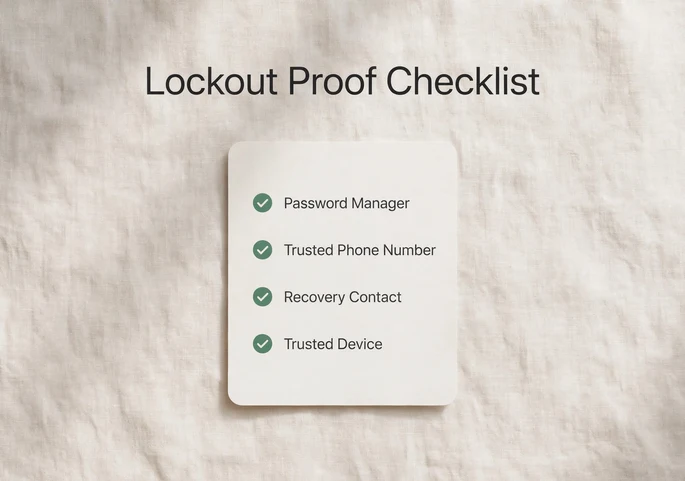
- Use a strong, memorable password. Apple requires at least eight characters with a number, an uppercase letter, and a lowercase letter. A long passphrase is easier to remember than a random string.
- Store it in a password manager. Apple’s Passwords app or any trusted manager keeps it safe and searchable.
- Keep your trusted phone number current. If you change numbers, update it before you give up the old one.
- Add a recovery contact. Choose someone you trust who can help you regain access.
- Consider a recovery key carefully. It gives you full control, but Apple will not be able to reset your password for you if you lose the key. Store it somewhere safe.
- Keep one trusted device signed in. A signed in iPhone or Mac is your fastest route back.
Final Thoughts
Getting back into your Apple Account comes down to what you can prove. A trusted device gives you the quickest reset, recovery factors give you the next best path, and account recovery is the slow but secure backup. Start with the easiest option, keep your devices off during any recovery wait, and type the Apple web address yourself.
Once you are back in, take five minutes to set up a recovery contact, update your trusted phone number, and save your new password in a manager. Your future self will be glad you did.
Frequently Asked Questions About Forgot Pwd and iforgot.apple.com
What is the iforgot.apple.com web page used for?
It is Apple’s official site for resetting a forgotten Apple Account password, unlocking an account, and starting account recovery. You enter your email address or phone number and follow the steps. It handles every forgot Apple ID password and Apple ID password reset request under the newer Apple Account name.
What should I do first if I forgot pwd for my Apple Account?
Check whether you have a trusted device. If you do, change your password in Settings or System Settings under Sign In and Security. If not, go to iforgot.apple.com and follow the prompts.
How long does Apple account recovery take?
Apple says it can take several days or longer. The wait depends on the information you can provide, and a verified code sent to your primary email address can sometimes shorten it.
Is the address iforgot.apple.com.web correct?
No. The correct address is iforgot.apple.com. Adding “.web” to the end sends you to a page that Apple does not run.
Read More
Force Quit on Mac: Every Method Explained
How to Retrieve Text Messages From Android Phone Safely