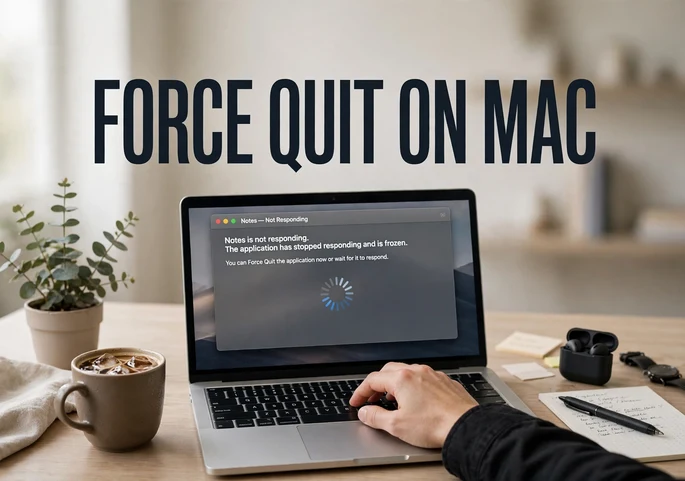
A spinning rainbow wheel can ruin your whole day. How do you close an app that will not listen? This guide shows how to force quit on mac with a shortcut, menus, the Dock, Activity Monitor, and Terminal, plus what to do when the entire Mac is stuck.
Try a Normal Quit First
Before you force anything, try a regular quit with Command plus Q. A normal quit lets the app save your work and close cleanly. Wait a short moment, because some apps are only busy and not frozen. Use the methods below only when the app truly does not respond.
Force Quit on Mac With the Keyboard
The fastest way is the force quit mac shortcut. Press Option, Command, and Esc together to open the Force Quit Applications window. Pick the app marked Not Responding, click Force Quit, and confirm. Learning this shortcut helps you force quit on Mac in seconds without using the mouse much.
Force Quit From the Apple Menu or Dock
You can also click the Apple menu in the top left corner and choose Force Quit. This opens the same window as the shortcut. Another option is the Dock. Hold the Option key, right click the app’s icon, and choose Force Quit. Use whichever route feels easiest when you face a mac frozen app.
Use Activity Monitor Mac for Stubborn Apps
Activity Monitor shows every app and background process on your Mac. You can find it in the Utilities folder inside Applications. Open activity monitor mac, select the stuck app or process, click the stop button, and choose Force Quit. This route helps when an app does not show up in the normal window, or when something in the background is slowing the whole Mac.

Terminal and killall for Advanced Users
Advanced users can close an app from Terminal with the killall command followed by the exact app name. Spelling matters, and the app name must match exactly. Only use this if you are comfortable with Terminal. A wrong name will do nothing, so double check before you press Return.
When Finder Freezes
Finder is special, because it runs your desktop and file windows. If Finder itself freezes, open the Force Quit window and select Finder. The button there changes to Relaunch, and clicking it restarts Finder. Your open files in other apps stay as they are. This is often the fix when the desktop feels stuck.
If the Whole Mac Is Stuck
Sometimes nothing responds, not even the mouse. In that case, force restart the Mac by holding the power button for about 10 seconds. On Macs with Touch ID, that means holding the Touch ID button. Wait a moment, then press the button again to start it. Treat this as a last resort, since it ends all running apps at once.
Warnings Before You Force Quit
Force quitting can lose unsaved work in that app. The app has no time to save, so recent changes may disappear. Use it only when the app does not respond. If an app comes back after a minute, let it finish and save first.
When AI Apps Freeze on a Mac
AI tools can be heavy, especially when they process long documents. A browser tab or desktop app may hang while it works on a big file. Wait a short time, then use the steps above if it does not recover. Closing other heavy apps first can also help.
If you use tools like an AI grader on a long paper, and the app freezes, the same quit steps apply.
How to Prevent Frozen Apps
Prevention beats repair. Keep macOS and your apps updated, since updates often fix bugs. Close apps you do not use, and keep free disk space available. Open Activity Monitor now and then to spot runaway processes that eat memory or processor time.
If freezes keep happening, your drive may be a cause, so check its health with hard disk repair software.
Where to Go Next
Small fixes like these keep work moving. If a problem repeats, note which app freezes and what you were doing. That detail helps when you search for a fix or ask for help. We have not tested every Mac model for this article, so steps can differ slightly between macOS versions.
You can find more practical guides in our tech guides.
Conclusion
Knowing how to force quit on mac turns a stuck app into a small bump. Try Command plus Q first, then use Option, Command, and Esc, the Apple menu, the Dock, or Activity Monitor. Use a force restart only when the whole Mac is stuck. Save often, keep your system updated, and watch for apps that freeze again and again.
Frequently Asked Questions
How do I force quit on mac without a mouse?
Press Option, Command, and Esc to open the Force Quit window. You can usually use the arrow keys to pick the app and the Return key to confirm. Keyboard options can vary a little by macOS version.
Does force quitting delete my files?
It does not delete saved files. It can lose unsaved changes in the app you close. Save your work whenever you can.
What if the app is not in the Force Quit window?
Open Activity Monitor and look for the process there. Select it, click the stop button, and choose Force Quit. This also works for background processes.
Is Terminal safe for closing apps?
It is safe if you type the exact app name and know what you are doing. A wrong command can cause trouble, so beginners should use the Force Quit window instead.
Read More
Keep exploring more Tech Weeklys guides: