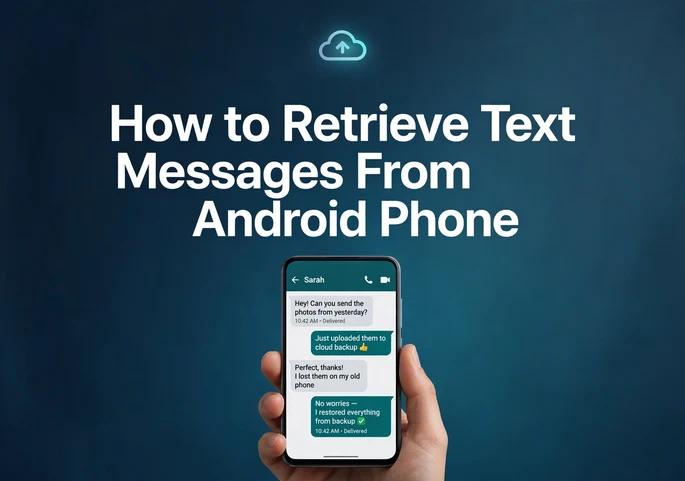
One wrong tap can wipe out a message you still need. Can you actually get it back? Often you can, and this guide on how to retrieve text messages from android phone covers archives, trash folders, cloud backups, brand specific restores, and recovery for broken phones. You will also learn which method to try first, how to check a backup before you reset, and how to avoid overwriting newer texts.
Why Deleted Texts Can Sometimes Come Back
Android keeps messages in a database in internal storage. When you delete a text, the phone usually marks that space as free instead of wiping it at once. The old message can stay there until new data overwrites it. That is why you should stop installing apps and avoid heavy phone use right after a deletion.
Some apps add a safety net, and others do not. Samsung Messages has a recycle bin, while Google Messages has no trash folder. Many chats people think they deleted are only archived. Your first job is to find out which situation you are in.
How to Retrieve Text Messages From Android Phone: Which Method First?
The right method depends on your messaging app and on whether a backup exists. Work through the list below from the top, and stop as soon as your message returns. Each method is explained in the sections that follow. Do not factory reset your phone until you have read the backup warnings later in this guide.
- You use Google Messages: check the Archived folder first, then look for a Google Drive backup.
- You use Samsung Messages: check the Trash first, then Samsung Cloud, then a Google backup.
- You use a Xiaomi, Huawei, OnePlus, Oppo, or Vivo phone: check the messaging app for its own trash or archive, then the brand backup, then a Google backup.
- You switched phones: check the old phone and its backup before you wipe anything.
- Your phone is broken or lost: go straight to the backup sections.
- You have no backup at all: ask the sender, contact your carrier, and only then consider a recovery tool.
Check Archived Messages in Google Messages
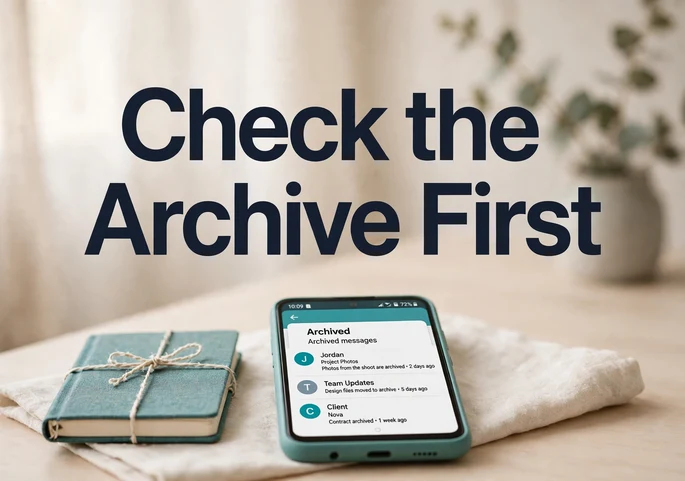
Archiving hides a conversation but does not delete it. Google Messages has no trash bin, so a true deletion is permanent unless a backup exists. Before you worry, check the archive. Many “lost” chats are sitting there.
On your phone or tablet:
Open Google Messages.
Tap your profile icon next to the search icon.
Choose Archived.
Long press the conversation you want back.
Tap the unarchive button in the upper right corner.
On a computer:
Open Google Messages for Web and pair it with your phone.
Click the menu icon in the upper right corner.
Select Archived.
Click Unarchive beside the conversation.
Click Done.
Menu names can change between app versions, so look for the closest match on your screen.
Restore Deleted Texts From Samsung Messages Trash
Samsung Messages includes a recycle bin that keeps deleted texts for 30 days, then erases them for good. You can turn this feature on in the app settings, so check that it was active. Texts only land in the bin if the feature was on when you deleted them. Open it as soon as you notice a loss.
Open Samsung Messages.
Tap the three dots menu.
Choose Trash or Recycle bin.
Tap Edit, then select the messages, or tap All.
Tap Restore.
The restored messages return to your main message list.
Restore Texts From a Google Drive Backup
Most guides treat a Google Drive backup as the standard path for how to retrieve text messages from android phone after a deletion. It works only if the backup was made before you lost the messages. Restoring usually means a factory reset, which erases everything on the phone. Protect your current data first, then follow the steps below.
Check that the backup contains SMS (see the checking section below).
Open Settings, then System, then Reset options, then Erase all data (factory reset).
During setup, sign in to the same Google account you used for the backup.
Choose to restore from a backup and pick the right one.
Make sure the SMS messages option is selected, then wait for the restore to finish.
Menu names vary by phone and Android version. Backups also count toward your Google Drive storage, so you may need to free space or look at a Google One plan.
Restore Texts With Samsung Cloud and Smart Switch
Samsung Cloud restores messages only if you backed up before the deletion. Smart Switch moves messages from an old device to a new one, but it does not recover deleted texts. Use Samsung Cloud when you want to restore on the same phone. Use Smart Switch when you are changing phones.
For Samsung Cloud, open Settings, then Accounts and Backup, then Samsung Cloud, then Restore data. Select Messages and tap Restore.
For Smart Switch, install it on both phones and connect them by USB cable or wifi. Select Messages and start the transfer.
Xiaomi, Huawei, OnePlus, Oppo, and Vivo Backups
Some guides say Xiaomi, Huawei, and OnePlus offer backup features similar to Samsung Cloud through their own systems. TechWeeklys has not tested each brand’s menus, and exact paths change by model and software version. Oppo and Vivo phones may also include their own backup tools, so check your settings. Open Settings, search for backup, cloud, or restore, and look for an item that mentions messages or SMS.
Open the brand backup or cloud app and look for a Messages or SMS item.
Confirm that the right account is signed in.
Check the date of the latest backup.
Look inside the messaging app for its own trash or archive.
If the brand backup has no SMS, fall back to your Google Drive backup.
Retrieve Texts on a New Phone After Switching
Switching phones is the easiest time to move messages, because the old phone still holds them. Do not wipe, sell, or trade in the old phone yet. Use the maker’s transfer tool, such as Smart Switch on Samsung, or restore a Google backup while you set up the new phone. Keep the old phone until you confirm that the new one shows your conversations.
Same brand: use the brand transfer app.
Different brands: restore your Google backup during setup, or use a saved SMS Backup and Restore file.
Local file method: create a backup file on the old phone, copy it to the new phone or to cloud storage, then restore it with the same app.
After the move, open your most important chats and check that they are complete.
How to Check Whether a Backup Contains SMS Before You Reset
A reset wipes the phone, so check the backup first. Some manufacturers do not back up SMS by default, so never assume. Confirm that SMS messages appear in the backup and that its date is before you lost the texts. If you cannot confirm this, do not reset yet.
Google: open the Google Drive app, open the menu, go to Backups, open the latest backup, and look for SMS messages. You can also check Settings, then Google, then Backup.
Samsung: open Settings, then Accounts and Backup, then Samsung Cloud, and review the list of backed up items and the backup date.
Other brands: open the brand backup tool and read its list of items and its last backup time.
Warning: Restoring an Old Backup Can Erase Newer Texts
A backup is a snapshot. When you restore it, the phone returns to that moment, so texts received after the backup may disappear. That can include verification codes, receipts, and new chats.
Protect them before you start. Make a local copy of your current messages first.
Open SMS Backup and Restore and tap Set up a backup.
Select Messages and save the file.
Copy the file to Google Drive or to a computer.
Restore your old backup only after the copy is safe.
Use the saved file to look up any newer messages that are missing.
Recover MMS Photos and Attachments
MMS messages carry photos, videos, and audio, and they are heavier than plain SMS. Some guides say a Google backup can bring back SMS and MMS together. Check the same places you check for plain texts: the archive, the trash, and the backups. Attachments may also exist in other places on your phone.
Ask the sender to resend the file.
Check your gallery and downloads folder for saved copies.
In SMS Backup and Restore, look in the settings for an option to include MMS before you back up, because photos may be left out otherwise.
What to Do About RCS Chats
Older guides focus on SMS and MMS, but many phones now use RCS in Google Messages when the carrier supports it. Recovering RCS chats is possible, but problems can appear after you restore them. TechWeeklys could not verify a full step by step method for RCS, so treat the results as uncertain. The safest move is to check the archive and a recent backup first.
Broken, Lost, or Dead Phone
If your phone will not turn on, most recovery tools will not help, because they need a working phone with USB Debugging. Your best option is a backup. This is the core of how to retrieve text messages from android phone hardware that cannot start. Get a replacement phone and restore from your Google account or brand cloud.
Lost phone: sign in with the same Google account on the replacement during setup and restore the latest backup. Also secure your accounts.
Broken screen: check when the last backup ran before you try anything else.
Saved file: if you stored an SMS Backup and Restore file in Google Drive or on a computer, restore it on the new phone.
Do not let a repair shop wipe the phone until you know your backups are safe.
Carrier and Sender Options
Carriers usually keep billing records, but those records often show no message content. Some carriers may keep the text for a short time, and getting it can require a court order. Contact your carrier to learn its policy, and expect possible fees. The simplest fallback is to ask the sender to resend the message.
Recovery Tools When You Have No Backup
Recovery software can try to find deleted messages in phone storage, but nothing is guaranteed. Guides mention Dr.Fone, Tenorshare UltData, DroidKit, PhoneRescue, FonePaw, FoneLab, Disk Drill, and EaseUS. TechWeeklys has not tested any of them.
Results depend on your phone, your Android version, and how much new data has overwritten the old. One guide says DroidKit did not support Android 15 at the time, so confirm support on the vendor page before you buy.
Most tools ask you to turn on USB Debugging first:
Open Settings, then About phone, then Software information.
Tap Build number seven times to unlock Developer options.
Go back to Settings, open Developer options, and turn on USB Debugging.
Connect the phone to a computer with a USB cable.
Run the tool, choose Messages to scan, preview the results, and pick where to save them.
Some tools need root access. Rooting removes software restrictions, can expose the phone to malware, can reduce performance, and can void the warranty. Some recovery apps are scams or carry malware, so use official sites and read the privacy policy. Stop if a tool asks for something you do not understand.
What Paid Recovery Tools Cost
TechWeeklys could not verify current prices for these tools, so this article lists none. Guides describe many of them as not free, and one calls them quite expensive. Some may offer a free scan or preview, but confirm that on the vendor page. Prices, trial limits, and refund terms change often, so check them on the day you buy.
- Does the tool offer a free scan or preview of found messages?
- Is the price a one time fee or a subscription?
- Does it support your phone model and Android version?
- Does it need root access?
- What is the refund policy?
- Are you downloading it from the official site?
Free options come first, because they cost nothing and carry less risk. A saved backup file and a regular backup habit are smart budget tech for any phone. Try the archive, the trash, and your backups before you pay for software.
Backup Checklist to Stop Future Loss
Use three layers so one failure does not cost you everything. Turn on Google backup, use Samsung Cloud if you own a Samsung phone, and keep a local SMS Backup and Restore file. Set a schedule so the file stays fresh. Check all three layers every few months.
Google: open Settings, then Google, then Backup, and confirm backup is on and SMS messages are included. Watch your storage space.
Samsung: open Settings, then Accounts and Backup, then Samsung Cloud, and confirm messages are included.
Local file: in SMS Backup and Restore, tap Set up a backup, select Messages, choose a location such as Google Drive, and set a daily or weekly schedule.
Habit: archive important chats instead of deleting them.
Messages are not the only data worth protecting. If you use a fitness band or other wellness gadgets, their companion apps may keep data in separate places. Check each app’s backup or sync settings so nothing disappears when you switch phones.
Conclusion
Now you know how to retrieve text messages from android phone in a safe order. Check archives and trash first, then backups, then your carrier and the sender, and use recovery tools last. Protect newer messages before you restore anything. Set up all three backup layers today so the next deletion is a small problem.
FAQs
How to retrieve text messages from android phone without a backup?
Start with the free steps: check the Google Messages archive, check the Samsung Messages Trash, and ask the sender to resend. You can also contact your carrier about its policy. If those fail, a recovery tool may find leftover data, but nothing is guaranteed. Stop heavy phone use so new data does not overwrite the old messages.
Does Google Messages have a trash folder?
No, Google Messages has no trash folder. A deleted text is gone unless you have a backup. Always check the Archived folder, because many missing chats are only archived.
How long do deleted texts stay in Samsung Messages Trash?
Deleted texts stay in the Samsung Messages recycle bin for 30 days, then they are erased for good. This only helps if the recycle bin was turned on when you deleted the messages. Open the Trash as soon as you notice a loss.
Can I recover texts from a phone that will not turn on?
Usually your best chance is a backup, because most recovery tools need a working phone connected to a computer. Restore your Google or brand cloud backup on a replacement phone. A saved SMS Backup and Restore file can also work. Ask the sender or your carrier if no backup exists.
Read More