Few things are more annoying than a PDF you cannot edit. So which tool should you use, and why do some conversions come out clean while others turn into a mess? The right PDF to Word converter depends mostly on one detail: whether your file holds real text or only a picture of text. This guide covers the main methods, scanned files and OCR, layout problems, privacy, and the steps for a clean result.
How a PDF to Word Converter Works
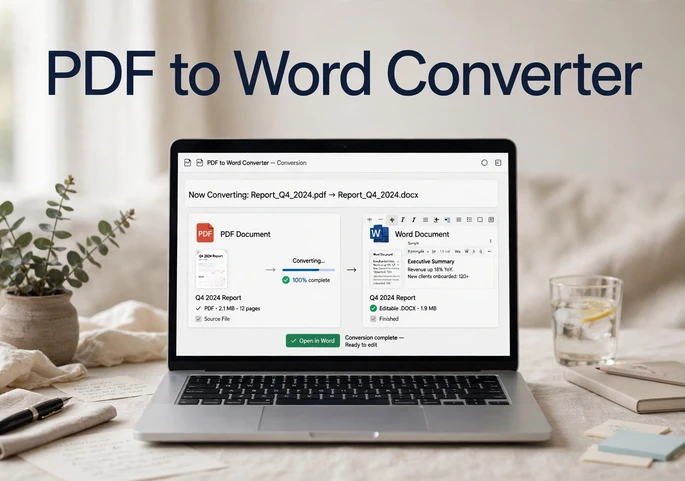
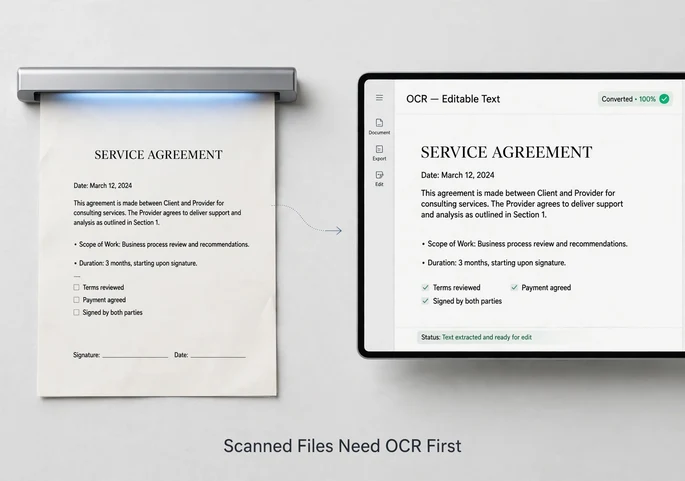
A conversion tool reads your file and rebuilds it as an editable Word document. Searchable PDFs already contain a text layer, so the tool can copy the text and match the layout. Scanned or photographed PDFs are only images of text, so the tool must run OCR first. OCR stands for optical character recognition, and it identifies letters so Word can receive real text.
How to Convert Scanned PDF to Word
To convert scanned PDF to Word, you need a tool with OCR, because a scan is just a picture of a page. Without OCR, you may get a Word file that holds images and cannot be edited. Good results also depend on a clear scan, since blurry or tilted pages cause more errors. Always read the output closely, because OCR can misread characters.
Using Microsoft Word to Open PDFs
Word can open a PDF directly through File and then Open. It makes an editable copy and tries to match the original layout. This works best for documents that are mostly text. You need a Word license, and complex pages may need cleanup.
Google Drive and Google Docs
Upload the PDF to Google Drive, then open it with Google Docs. This step triggers free OCR, and you can export the result as a DOCX file. It is a good free PDF to Word converter route for scans, though results vary with scan quality. Google may change limits and features, so check the current rules before you rely on it.
Adobe Acrobat
Acrobat can recognize text in scanned files and export to DOC or DOCX. Many users pick it for complex layouts, which are harder for simpler tools. It is a paid product, and trials may have limits. Check current pricing and trial terms on Adobe’s site, since both can change.
Online Converters
Online tools such as Smallpdf, iLovePDF, HiPDF, and OCR2Edit work in your browser. Most act as a PDF to DOCX converter, and some also offer OCR. Free plans usually have daily limits, and OCR may not be included in every free tier. TechWeeklys has not tested these services hands on, so treat these points as vendor claims and recheck them.
Desktop Tools
Desktop programs such as PDFelement, Foxit PDF Editor, and Nitro PDF Pro run on your computer. They often offer batch OCR, editing tools, and Word export. These tools suit people who convert files often or handle private documents. Prices and features change, so confirm them on the vendor’s page.
What Survives and What Breaks
Titles, paragraphs, and lists usually survive conversion well. Fragile areas include complex tables, nested columns, unusual fonts, backgrounds, and heavy graphics. These items may shift, change fonts, or flatten into images. Plan to check each of them after you convert.
Check these items first:
- Tables and merged cells
- Columns and text flow
- Fonts and spacing
- Images and backgrounds
- Special characters
Free Versus Paid Options
A free PDF to Word converter is often enough for a single clean file. Paid tools add batch OCR, better layout matching, and editing features. Free limits and prices change often, so recheck them before you commit. Choose by how often you convert and how complex your files are.
Privacy When Converting Files
Sensitive documents need extra care when you convert them. Uploading to a website sends your file to someone else’s server, so check how long the service keeps files. For contracts, health records, or financial papers, desktop or offline tools are usually the safer choice. Never upload a file that you are not allowed to share.
Handling Legal PDFs Carefully
Legal files call for extra care. If a PDF may become evidence, such as when a lawyer works with a cybersecurity expert witness, keep the original untouched and convert only a copy. Record when and why you made the copy. Ask your lawyer before you convert anything that may be used in a case.
Students and Researchers
Students often convert papers to Word so they can highlight, quote, and edit notes. After that, you need to credit your sources, and an AI citation generator can help format references, though you should check every citation by hand. Always confirm that the converted text matches the original, since conversion errors can change quoted words or numbers. Keep the original PDF so you can verify any detail.
Steps for a Clean Result
Follow a simple order to get a clean result with any PDF to Word converter. First, decide whether your PDF is searchable or scanned. Then pick a method, convert a copy, and proofread the Word file.
- Check whether you can select text in the PDF.
- Pick the method that fits the file type and your privacy needs.
- Convert a copy, not the original.
- Fix formatting, tables, and special characters.
- Compare the Word file with the original before you use it.
Conclusion
The best PDF to Word converter is the one that fits your file type, layout, and privacy needs. Word, Google Docs, and Acrobat cover many jobs, while online and desktop tools suit others. Always check scanned files closely, since OCR can make mistakes. Free limits and prices change, so recheck them before you decide.
Frequently Asked Questions
What is the best PDF to Word converter for scanned files?
Choose a tool that includes OCR, such as Google Docs or Acrobat. Online and desktop tools may also offer it. Results depend on scan quality, so test with a small page first.
Can I convert a PDF to Word for free?
Yes, in many cases. Google Docs offers a free OCR route, and many online tools have free daily limits. Limits change, so check the current terms.
Why does my Word file look different from the PDF?
A PDF fixes the position of every element, while Word reflows text. Complex tables, columns, fonts, and graphics are the most common problems. Fix them by hand after converting.
Is it safe to upload a PDF to an online converter?
It depends on the service and the file. Check how long files are stored. For sensitive documents, use a desktop or offline tool.
Read More
Keep exploring more Tech Weeklys guides: