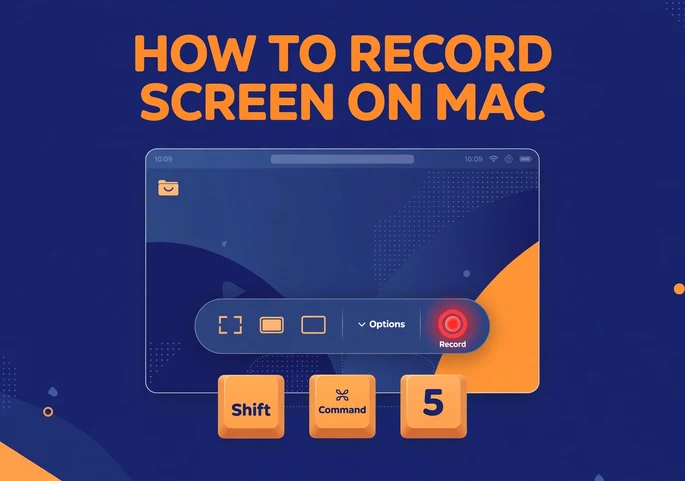
Press Shift + Command + 5, choose the area you want to capture, and click Record. When you are done, press Command + Control + Esc to stop, and your Mac saves the video as a .mov file on the Desktop.
This quick shortcut works on every Mac running macOS Mojave 10.14 or later, including macOS Tahoe 26. If you want to record screen on Mac with sound, one window, or even your iPhone, there are a few extra steps that make a big difference. This guide walks you through every method, from the built in toolbar to OBS Studio, so you can pick the one that fits your project.
What Is the Fastest Way to Capture Your Display on a Mac?
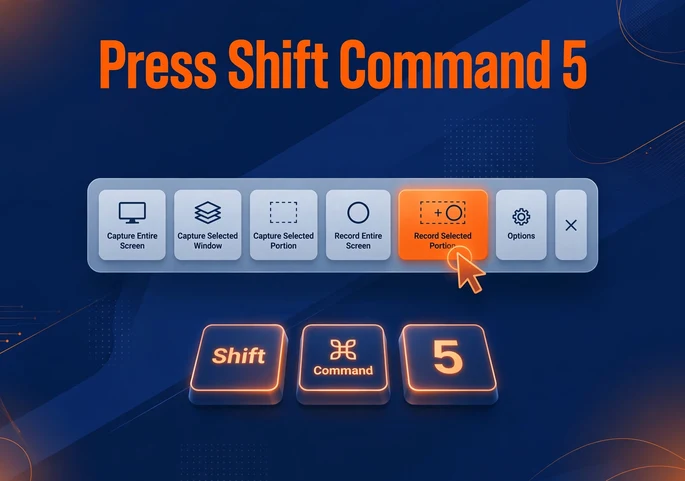
The fastest way is the Screenshot toolbar, which opens with Shift + Command + 5 on any Mac running macOS Mojave 10.14 or later. It works on both Intel and Apple silicon Macs, so you need no download, no account, and no setup. Most people can start a Mac screen recording in under five seconds, which makes it ideal for bug reports, quick demos, and support replies.
How to Use Shift Command 5 for Screen Recording
Open the Toolbar and Pick Your Area
Press Shift + Command + 5 and a small toolbar appears at the bottom of your display. You will see three recording choices: Record Entire Screen, Record Selected Window on macOS Tahoe 26, and Record Selected Portion. Pick the full screen for presentations, or drag a box around one app when you want viewers to focus on a single task without distractions.
Set Your Options Before You Press Record
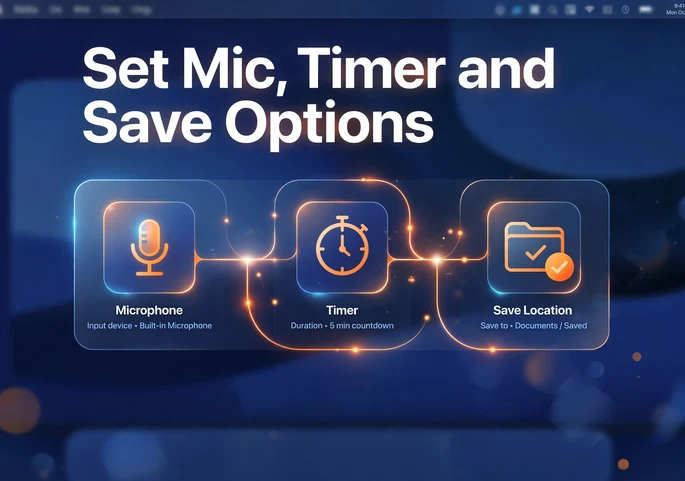
Click Options in the toolbar before you start, because this menu controls the details that matter later. Choose your microphone if you plan to speak, set a timer of five or ten seconds, and turn on Show Mouse Clicks for tutorials. You can also change the Save to folder here, so your files land somewhere easier to find than the Desktop.
Stop the Recording and Find Your File
When you finish, press Command + Control + Esc or click the Stop button in the menu bar. A thumbnail appears in the corner of your screen, and you can click it to trim, share, or delete the clip. By default, the file is saved to your Desktop and named Screen Recording followed by the date and time, in .mov format.
How to Use QuickTime Player for Screen Recording
QuickTime Player is the older route, and it still works well if you like a standard app window. Open QuickTime, click File, then New Screen Recording, or press Control + Command + N. On current versions of macOS, this opens the same Screenshot toolbar described above. The real benefit of QuickTime is what happens after you stop, since the video opens right away so you can trim it without leaving the app.
How to Record One Window on macOS Tahoe 26
Apple added a dedicated window recording mode in macOS Tahoe 26, and it saves a lot of cropping work. Open the toolbar with Shift + Command + 5, choose Record Selected Window, and click the window you want. Only that window is captured, which keeps notifications and private tabs out of your video. Apple keeps improving these tools, so our Apple Mac event coverage is a good place to see what new features arrive next.
How to Record Screen and Audio on Mac
Record Your Voice With a Microphone
Voice narration is simple to add. Open the Screenshot toolbar, click Options, and pick your microphone from the Microphone list. A USB headset or external mic gives much cleaner sound than the laptop mic, and headphones prevent echo. Do a ten second test clip first, because a quick check saves you from recording a whole tutorial twice.
Capture System Audio With BlackHole
Apple’s own recording tools do not capture the sound playing inside your apps, which means a video demo or a call will come out silent. The free fix is BlackHole, a virtual audio driver from Existential Audio. You install it, create a Multi Output Device in Audio MIDI Setup, and route your Mac sound through it. Then you select BlackHole as the input in your recorder.
How to Use OBS Studio for Advanced Screen Recording
OBS Studio is a free and open source app that gives you far more control than the native tools. On macOS 13 or later, you add a macOS Screen Capture source in OBS, and that source can capture app audio without a separate driver. Grant the Screen and System Audio Recording permission once in System Settings, and you can also save mic and system sound on separate audio tracks.
How to Record iPhone or iPad Screen on Your Mac
To show a mobile app, plug your iPhone or iPad into your Mac with a USB cable and open QuickTime Player. Click File, choose New Movie Recording, then use the arrow beside the Record button to switch the camera and microphone to your device. Your phone screen appears live on the Mac, so you can capture it as steadily as any desktop window.
How to Get High Quality Screen Recordings
Raise Your Display Resolution First
Blurry zoom shots usually come from low display settings, not the recorder itself. Open the Apple menu, go to System Settings, click Displays, and choose a higher scaled resolution for the screen you plan to capture. Recording on a sharp Retina display also helps. Higher resolution means text stays readable when you zoom in during editing.
Fix Choppy Playback With a Constant Frame Rate
QuickTime and the Screenshot toolbar record at a variable frame rate, so a clip can look choppy once you drop it into an editor. HandBrake is a free tool that converts the file to a constant frame rate in a few clicks. For most tutorials and product demos, 30 frames per second is a smart export setting that keeps files small and motion smooth.
Which Screen Recording Method Should You Choose?
Choose the Screenshot toolbar for fast bug reports, support replies, and short walkthroughs. Pick OBS Studio with BlackHole when you need system audio or multiple tracks. For regular video production, a dedicated app such as Camtasia or ScreenFlow adds editing, captions, and templates in one place. Teams that publish videos every week usually save the most time with that kind of all in one setup.
Common Screen Recording Problems and Fixes
If recording will not start or an app shows a black screen, open System Settings, go to Privacy and Security, and check the Screen and System Audio Recording permission for that app. If sound is missing, confirm the right microphone is selected, and add BlackHole for app audio. If files are huge, lower the resolution or export a compressed copy for sharing.
Conclusion
Shift + Command + 5 is the quickest way to start, and QuickTime, OBS Studio, and BlackHole cover audio, iPhone capture, and advanced projects. Set your resolution first, test your microphone, and convert variable frame rate clips before editing. For more practical tech guides like this one, explore our latest posts and keep your workflow sharp.
Frequently Asked Questions
How do I record my screen on a Mac?
Press Shift + Command + 5, choose Record Entire Screen or Record Selected Portion, and click Record. Stop with Command + Control + Esc or the menu bar Stop button. The video saves to your Desktop as a .mov file.
Can I record system audio on a Mac?
Not with Apple’s built in tools, which capture only your microphone. To record internal sound, install a free driver such as BlackHole, or use OBS Studio with its macOS Screen Capture source on macOS 13 or later.
Where do screen recordings go on a Mac?
Screen recordings save to your Desktop by default, named Screen Recording with the date and time. You can change this under Options in the Shift + Command + 5 toolbar by choosing Documents or another folder.
Can I record just one window on a Mac?
Yes. On macOS Tahoe 26 and later, open the Screenshot toolbar, select Record Selected Window, and click the window you want. On older versions, use Record Selected Portion and drag a box around the window.