How to use keyboard shortcuts on Mac comes down to one simple move: hold one or more modifier keys, press the last key, then release everything. For example, hold Command, tap C, and release to copy. This guide lists the most useful Mac keyboard shortcuts, including the new macOS 27 Golden Gate ones.
What Are Mac Keyboard Shortcuts?
A Mac keyboard shortcut is a key combination that does a task you would normally do with a mouse or trackpad. You press a modifier key, such as Command, together with a letter or number key. Every shortcut ends with one regular key.
Shortcuts save time because your hands never leave the keyboard. Even a two second saving, repeated 100 times a day, adds up to more than three minutes of work you get back daily.
Keep in mind that every app can have its own shortcuts, so a shortcut that works in one app may not work in another. If a shortcut does not behave as expected, check the app’s menu bar, because shortcuts are listed next to each menu item.
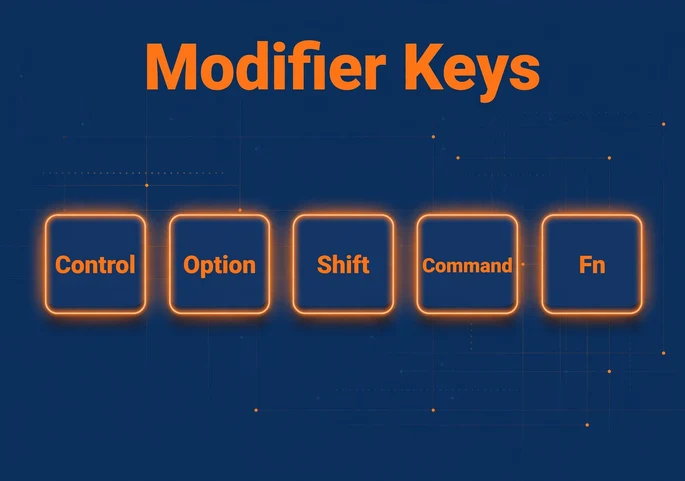
What Do the Mac Modifier Key Symbols Mean?
Menus show shortcuts as symbols instead of words. Learn these six and you can read any Mac menu.
| Symbol | Key name | Windows equivalent |
|---|---|---|
| ⌘ | Command (Cmd) | Ctrl or Windows key |
| ⌥ | Option (Alt) | Alt |
| ⇧ | Shift | Shift |
| ⌃ | Control (Ctrl) | Ctrl |
| ⇪ | Caps Lock | Caps Lock |
| fn or 🌐 | Function or Globe | Fn |
If you use a keyboard made for Windows PCs, press Alt instead of Option, and press the Windows logo key or Ctrl instead of Command.
How to Use Keyboard Shortcuts on Mac Step by Step
Follow these four steps for any shortcut:
- Find the modifier keys in the shortcut, such as Command or Shift.
- Press and hold all modifier keys together.
- Tap the last key once while still holding the modifiers.
- Release all keys.
The key order does not matter for the modifiers, but you always tap the final letter or number last. If a shortcut feels slow to trigger, such as a power button shortcut, hold it a little longer. Apple designs some of them this way so you do not trigger them by accident.
The top row of keys on many Apple keyboards controls brightness, volume, and Mission Control. To use them as F1, F2, F3, and so on, hold the Fn or Globe key first.
What Are the Most Common Mac Shortcut Keys?
These are the Mac shortcut keys you will use every day. Learn this table first.
| Shortcut | What it does |
|---|---|
| Command + C | Copy the selected item |
| Command + X | Cut the selected item |
| Command + V | Paste |
| Command + Z | Undo |
| Shift + Command + Z | Redo |
| Command + A | Select all |
| Command + F | Find in a document or window |
| Command + G | Find the next match |
| Command + S | Save |
| Command + P | |
| Command + N | New window or document |
| Command + T | New tab |
| Command + W | Close the front window |
| Command + Q | Quit the current app |
| Command + H | Hide the current app |
| Command + M | Minimize the front window |
| Command + Comma | Open settings for the front app |
| Command + Tab | Switch to the last used app |
| Command + Grave accent (`) | Switch between windows of the same app |
| Option + Command + Esc | Force quit an app |
Two quick tips make these stronger. Hold Command and keep pressing Tab to cycle through apps, then press Q to quit a highlighted app or H to hide it. And press Option + Command + H to hide every app except the one you are using.
How to Take a Screenshot on Mac
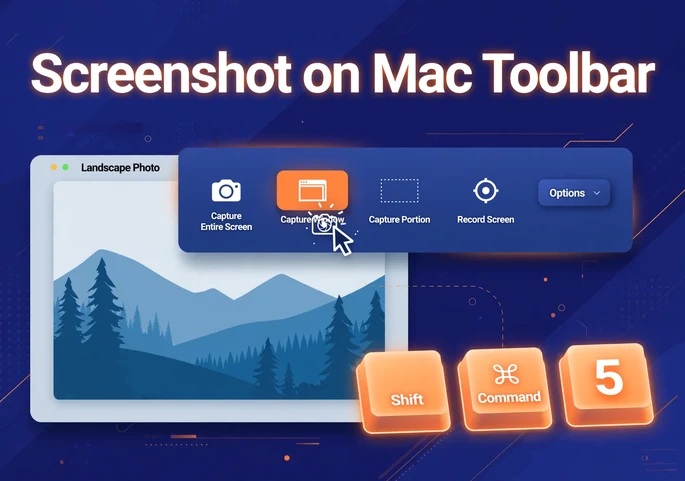
Screenshot on Mac is one of the most searched shortcut topics, and it only takes three shortcuts. Files save to your Desktop as PNG images by default.
| Shortcut | What it does |
|---|---|
| Shift + Command + 3 | Capture the entire screen |
| Shift + Command + 4 | Capture a selected area (drag to choose) |
| Shift + Command + 4, then Space bar | Capture a single window (click the window) |
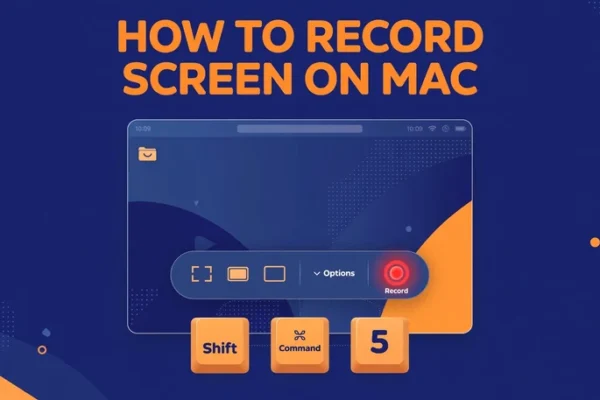
| Shift + Command + 5 | Open the screenshot and screen recording toolbar |
A few power tricks:
- Add the Control key to any screenshot shortcut to copy the image to your clipboard instead of saving a file.
- While dragging with Shift + Command + 4, hold the Space bar to move the selection, hold Shift to resize in one direction, or hold Option to resize from the center.
- When capturing a window, hold Option as you click to remove the drop shadow.
What Are the Best Finder and System Shortcuts?
Finder shortcuts help you move through files without touching the mouse.
| Shortcut | What it does |
|---|---|
| Command + Space | Open Spotlight search |
| Option + Command + Space | Open a Spotlight search in a Finder window |
| Space bar | Preview the selected file with Quick Look |
| Shift + Command + N | Create a new folder |
| Return | Rename the selected file |
| Command + Down Arrow | Open the selected item |
| Command + Up Arrow | Go to the parent folder |
| Command + Left Bracket ([) | Go to the previous folder |
| Command + Right Bracket (]) | Go to the next folder |
| Command + 1, 2, 3, 4 | Switch Finder view (icons, list, columns, gallery) |
| Command + D | Duplicate the selected file |
| Command + I | Show the Get Info window |
| Command + Delete | Move the selected item to the Trash |
| Shift + Command + Delete | Empty the Trash |
| Shift + Command + Period (.) | Show or hide hidden files |
| Option + Command + C | Copy the file path |
| Shift + Command + G | Go to a folder by typing its path |
| Shift + Command + H | Open your Home folder |
| Option + Command + L | Open Downloads |
| Shift + Command + R | Open AirDrop |
| Control + Up Arrow | Open Mission Control |
| Control + Down Arrow | Show all windows of the front app |
For a quick move, press Command + C to copy a file, then Option + Command + V in the new folder. This moves the file instead of copying it.
If you like straight and simple Apple guides, browse our latest Mac tips and tech guides for more.
What Are the Best Text Editing Shortcuts for Mac?
These work in most text apps, including Notes, TextEdit, Mail, and Pages. You can add Shift to any movement shortcut to select text as you move.
| Shortcut | What it does |
|---|---|
| Command + B | Bold |
| Command + I | Italic |
| Command + U | Underline |
| Command + K | Add a web link |
| Option + Delete | Delete the word to the left |
| Fn + Delete | Delete the character to the right |
| Command + Left Arrow | Jump to the start of the line |
| Command + Right Arrow | Jump to the end of the line |
| Command + Up Arrow | Jump to the start of the document |
| Command + Down Arrow | Jump to the end of the document |
| Option + Left Arrow | Jump back one word |
| Option + Right Arrow | Jump forward one word |
| Option + Shift + Command + V | Paste and match the style of the surrounding text |
| Control + Command + Space | Open the emoji and symbols viewer |
| Control + Command + D | Show the definition of the selected word |
Mac also supports a hidden set of Emacs style shortcuts in many text fields. Control + A jumps to the start of a line, Control + E jumps to the end, Control + K cuts to the end of the line, and Control + T swaps two letters.
What Are the Sleep, Lock, and Shut Down Shortcuts?
| Shortcut | What it does |
|---|---|
| Control + Command + Q | Lock your screen |
| Shift + Command + Q | Log out (asks to confirm) |
| Option + Shift + Command + Q | Log out immediately |
| Control + Shift + Power button | Put displays to sleep (built in keyboards without Touch ID) |
| Control + Command + Power button | Force restart without saving prompts |
Use the force restart shortcut only as a last resort, because it does not ask you to save open documents.
What Are the New Keyboard Shortcuts in macOS 27 Golden Gate?
Apple released macOS 27 Golden Gate on September 14, 2026. It adds a few shortcuts you should know.
| Shortcut | What it does |
|---|---|
| Shift + Command + F | Open the Recents list inside Open and Save dialogs |
| Shift + Command + Space bar | Ask Siri about the active window (needs Siri AI turned on) |
| Shift + Command + 6 | Ask Siri about a selected area of the screen (needs Siri AI turned on) |
| Fn + Q | Create a Quick Note |
| Fn + Shift + A | Open Apps (macOS Tahoe 26 and later) |
| Fn + C | Show or hide Control Center |
| Fn + N | Show or hide Notification Center |
| Fn + D | Start or stop dictation |
Command + Space still opens Spotlight, and with Siri AI turned on you can start a Siri conversation from the same search field.
Heads up on a known conflict: the new Shift + Command + Space bar shortcut clashes with the Quick Access shortcut in 1Password. If you use that app, change either shortcut in System Settings, then Keyboard, then Keyboard Shortcuts. Also note that macOS 27 does not run on Intel based Macs, so you need an Apple silicon Mac to get these new features.
How Do You Customize Mac Shortcuts?
You can change most Mac shortcuts to fit your habits.
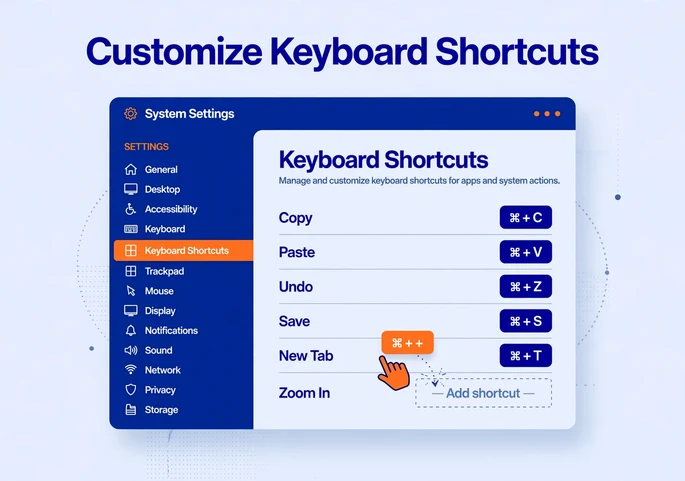
- Click the Apple menu, then choose System Settings.
- Click Keyboard in the sidebar, then click Keyboard Shortcuts.
- Pick a category, such as Mission Control, Spotlight, or App Shortcuts.
- Double click the current key combination and press your new one.
- Quit and reopen any open apps so the change takes effect.
To create a shortcut for a specific app, open App Shortcuts, click the plus button, choose the app, type the exact menu command name, and set your key combination. If a new shortcut does not work, it likely conflicts with an existing one. To undo all your changes, click Restore Defaults in the bottom left corner.
To get even more speed, pair your shortcuts with the best Mac productivity apps.
How Can You Learn Mac Shortcuts Faster?
Trying to memorize 100 shortcuts at once does not work. Use this simple plan instead:
- Start with five. Pick Command + C, V, Z, Tab, and Space. Use only these for one week.
- Add one per day. Learn one new shortcut each day and use it until it feels natural.
- Read your menus. Menu items show their shortcuts, so every click is a free lesson.
- Use the Help menu search. Press Shift + Command + Question mark, type a menu command, and press Return to run it.
- Remove your mouse crutch. Notice what you click most, then look up its shortcut.
FAQ
How do I use keyboard shortcuts on a Mac?
Press and hold the modifier keys, such as Command, Shift, Option, or Control, then tap the last key of the shortcut and release everything. For example, hold Command and press C to copy.
What does the Command key do on a Mac?
The Command key (⌘) is the main shortcut key on a Mac. It works like Ctrl on Windows and powers shortcuts for copy, paste, save, undo, and more.
How do I take a screenshot on a Mac?
Press Shift + Command + 3 for the full screen, Shift + Command + 4 for a selected area, or Shift + Command + 5 for the screenshot toolbar. Screenshots save to your Desktop by default.
Can I change keyboard shortcuts on a Mac?
Yes. Go to System Settings, then Keyboard, then Keyboard Shortcuts. Select a category, double click the shortcut, and press a new key combination.